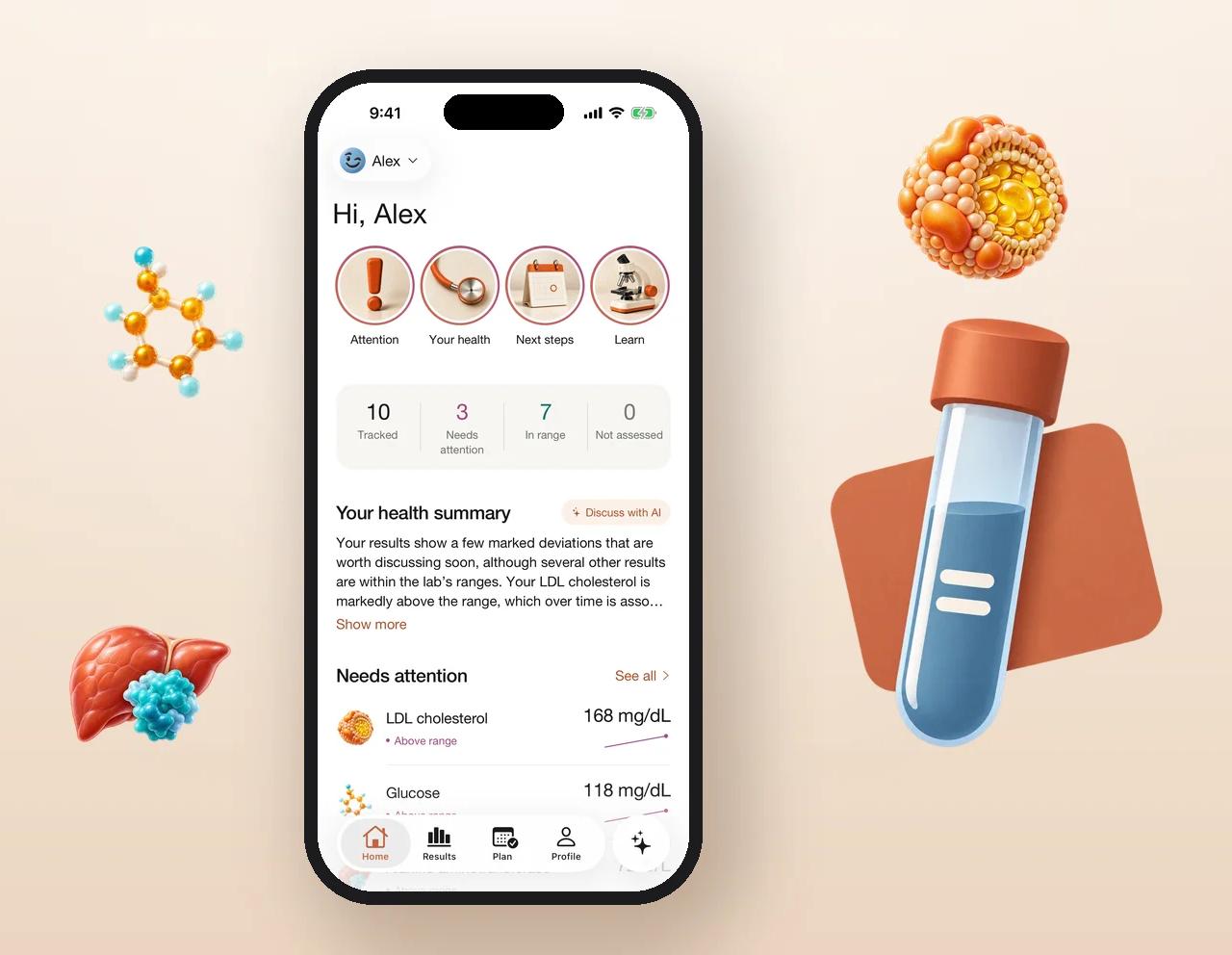
Every report in one place
Import lab reports as PDFs or photos, add other medical documents, and keep the originals. Each one stays readable, even if a page can't be read automatically.
 Labis
LabisKeep every lab report and medical document together. See each test with the laboratory's own reference range, follow its history, and take a clear PDF to your doctor.
An organizer and educational tool, not medical advice or a substitute for a clinician.

Features
Your original documents stay next to the values read from them, so you can always see where a number came from.
Import lab reports as PDFs or photos, add other medical documents, and keep the originals. Each one stays readable, even if a page can't be read automatically.
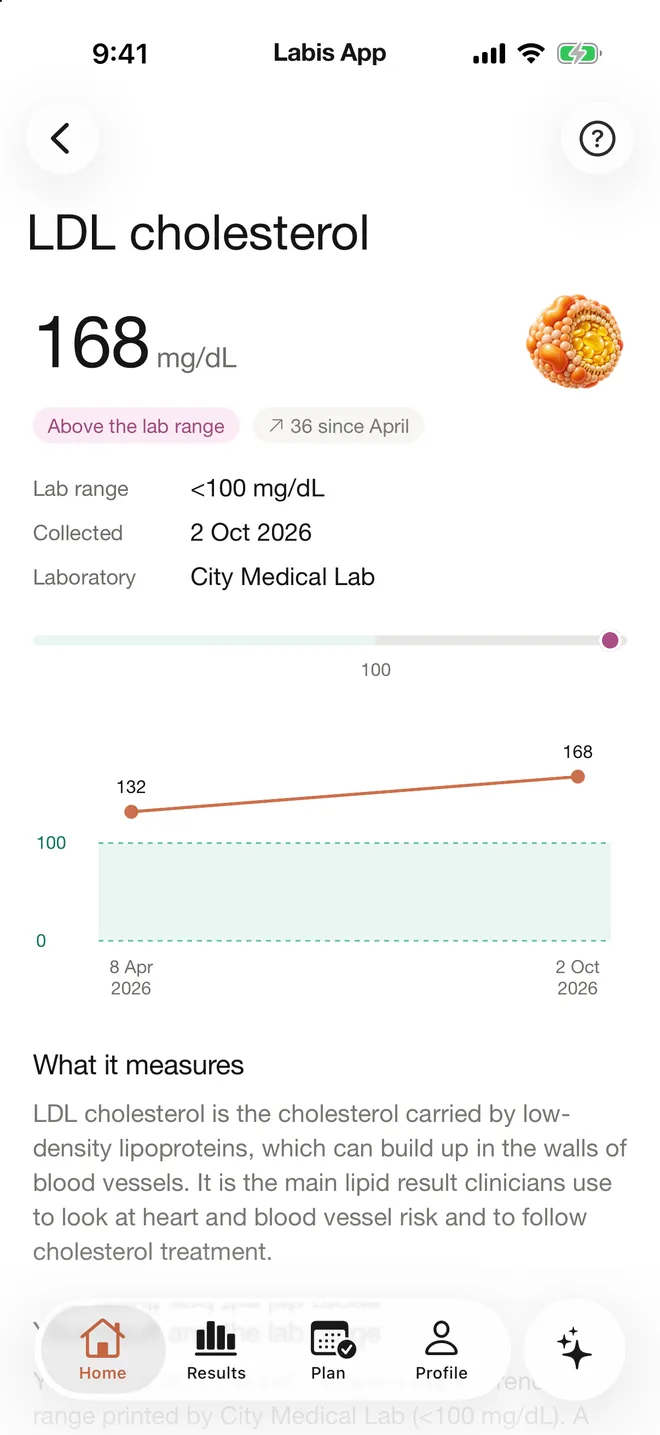
Every test shows its value, unit and the reference range printed by the laboratory that ran it, with a link to the source page so you can always check the original.
See how a result has changed across all your reports, for any period you choose, and compare any two dates side by side.
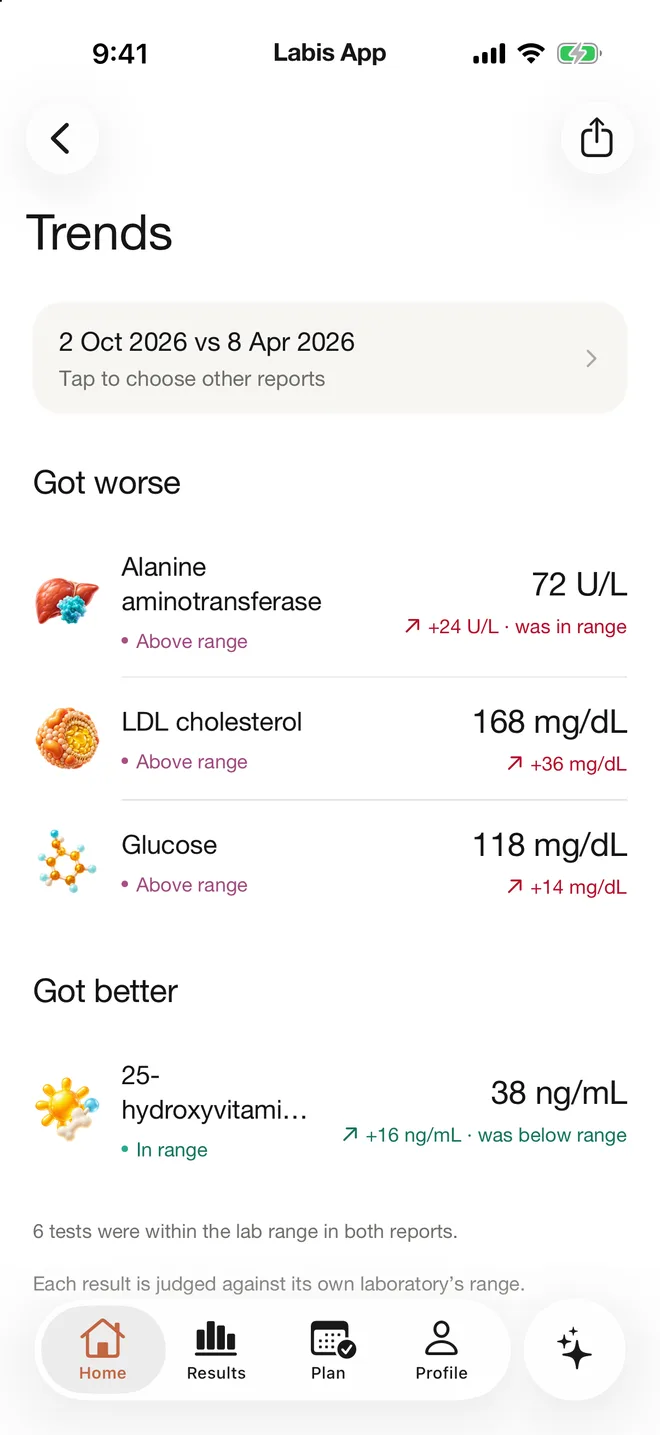
Pick any two reports and Labis lines up every test that was in both: what moved further from its lab range, what came back into it, and by how much.
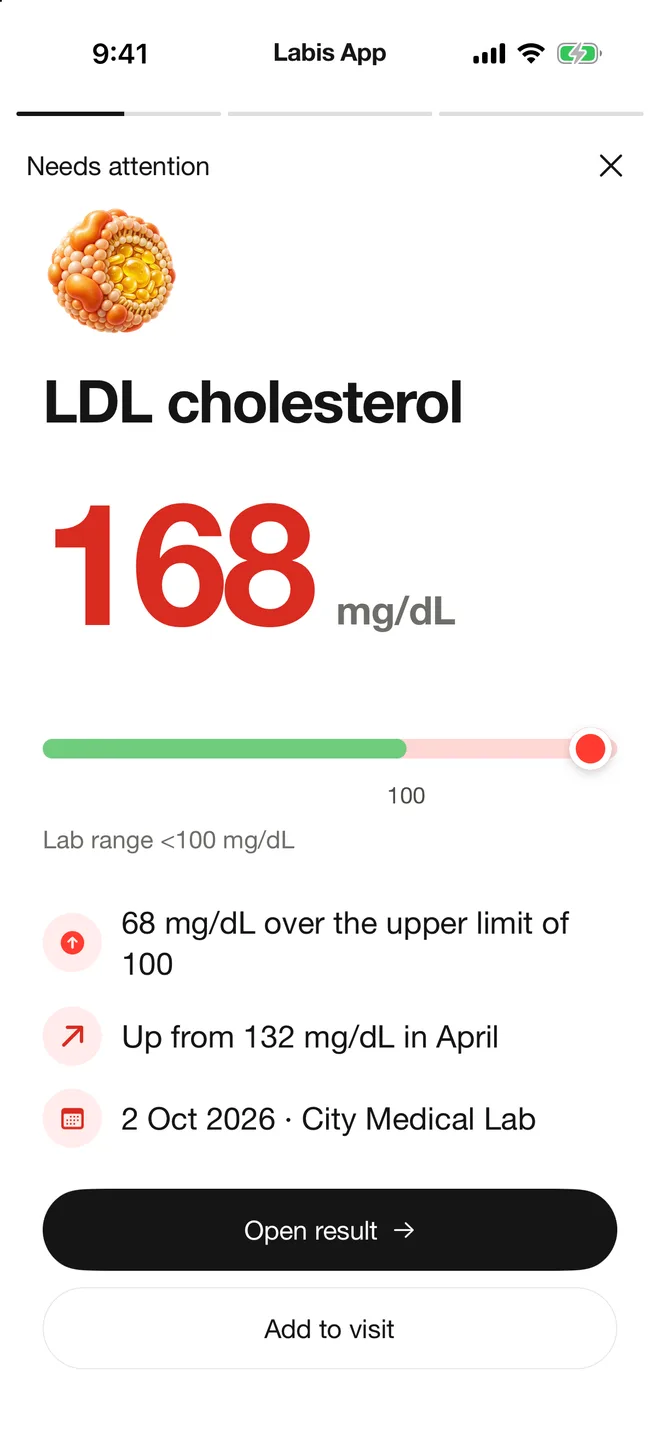
Short stories walk you through the results that need attention: the value, where it sits in the lab's range, how far past the limit it is and how it changed since last time, with one tap to the result or your visit questions.
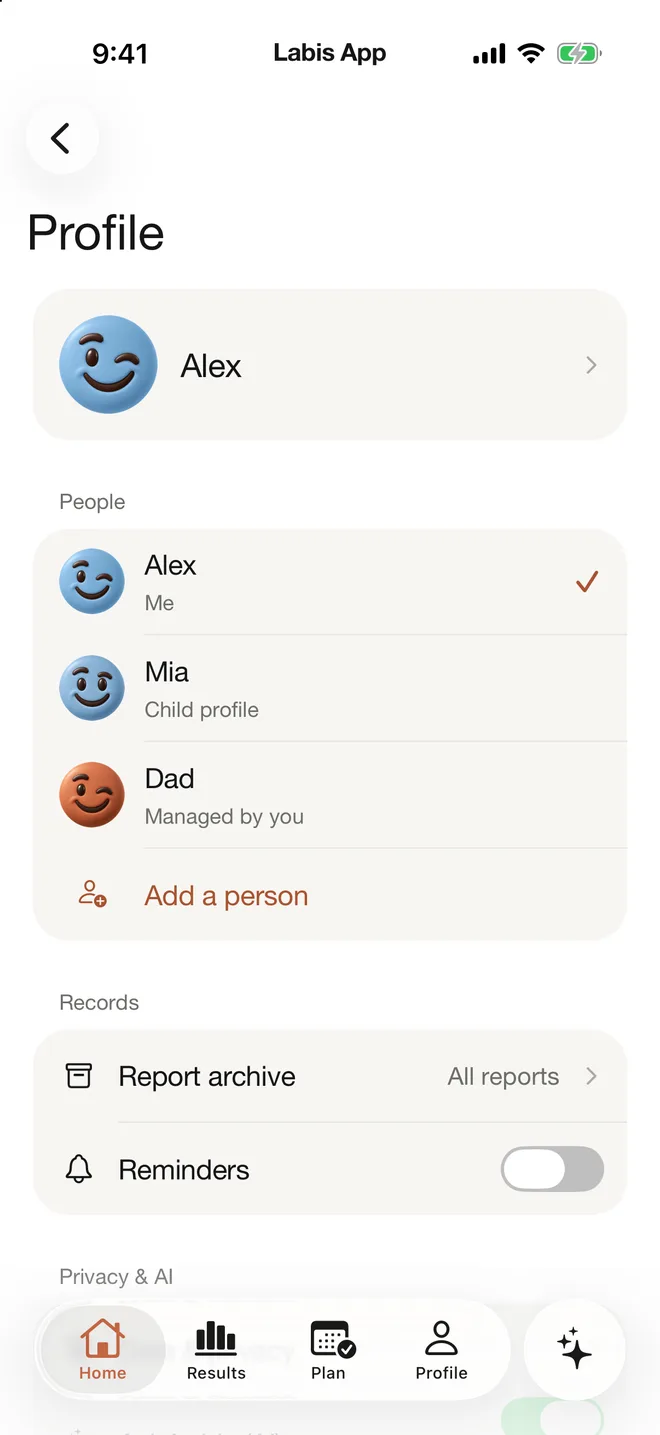
Keep a separate profile for a child you look after or a parent you help, or share your own with another adult. Every person gets only the permissions you grant, and you can remove them at any time.
And more
Reminders you set, a full export whenever you want one, and nothing used for advertising.
Export everything, including your original documents and your results, whenever you want a copy.
Add a reminder for a repeat test or a visit, with the date you were given, so it doesn't slip.
No ads, no advertising trackers, and no selling your data. Original documents sit in private storage that only you and the people you invite can reach.
How it works
Import PDFs or photos of your lab reports, or enter a result by hand. The originals are kept as they are.
Review each test against its source page and fix anything that was read wrong. You decide what is saved.
See every test's history, compare two dates, and take a PDF with your questions to your next appointment.
All 65 features
Every feature in the app today, from importing a 100-page report to sharing a profile with exactly the permissions you choose.
PDF, photo or camera import. Add lab reports from Files, your photo library, or by photographing a paper report page by page. PDF, JPEG, PNG and HEIC are accepted.
Many files in one import. Attach up to 20 files (50 MB each, 200 MB total), swipe to remove one, and add more before you upload.
Reports up to 100 pages. Values are read from PDFs of up to 100 pages, so long hospital reports still work.
Values read, then re-checked. Each value is read and then checked against the report again. Values that pass are saved automatically, with no checklist for every line.
Only unclear values need you. Values that remain unclear are marked "Please confirm", with buttons to confirm, edit or open the original page.
Live progress with stages. Each file moves through Uploading, Reading, Checking, Saving and Done, with "Open your results" at the end and Retry if something fails. A ring on the "+" button shows progress while you use the rest of the app.
Uploads needing attention. One list collects every upload that needs a quick check.
Clear notes on tricky reports. Labis tells you when it finds handwriting, blurry areas, missing pages, a preliminary or amended report, or older results printed in extra columns. It never guesses unclear characters.
Sample date and whose report. You are asked only when the collection date is ambiguous or the printed name doesn't match the profile. You can move a file to another profile.
Save as document only. Keep any file, such as a scan, letter or discharge summary, without reading values. Set its type, exam date and issue date.
Manual result entry. Type results from a paper report: test name (search or free text), value, unit, the lab's range as printed, and an optional lab. These are labelled "Manual entry".
Choose who it's for. Pick the person before uploading, or add a new child or adult right from the import screen.
Duplicate file detection. The same file is recognised if it is uploaded twice. (sha256 check).
Every test in Results. One card per test shows its latest value, with out-of-range tests first and the report one tap away.
Lab's reference range, as printed. Status comes from the range your laboratory printed: within, above or below. Labelled bands such as "Normal <5.7" are supported. With no range, Labis says "Reference range unavailable".
Range indicator for one result. A single result shows a read-only bar with the value, unit and the lab's lower and upper limits.
Status in words and icons. Every status uses an icon plus words, never colour alone. A critical mark is shown only when the lab printed one.
Source page for every value. Any value opens the original PDF at the exact page it came from, or shows that it was entered by hand.
Corrections keep their history. You can fix a value with a short reason. Every version is kept, and a lab's amended report is shown as "Corrected report".
Share a single result. Send one result (value, status, range and date) via the iOS share sheet.
History chart for every test. Two or more comparable results are drawn as a trend chart, with the lab's limits as dashed lines and the band shaded.
Time ranges and table view. Switch between 3M, 6M, 1Y, 5Y and All, and between Chart and Table.
No misleading mixed trends. Results in different units or from different methods are never merged. If labs used different ranges, each point is drawn with its own range. A result that can't be plotted is listed under the chart with the reason.
Compare any two dates. Pick result A and result B to see the change (B − A) and the percentage. The change is shown only when both values are exact and comparable. You can swap A and B or add the comparison to a visit report.
Reports and documents list. Every lab report and document file, newest first, with search.
Report and document pages. See a report's results with its original PDF or photos, edit details (type, provider, dates), share or save the original, and delete it with or without its results.
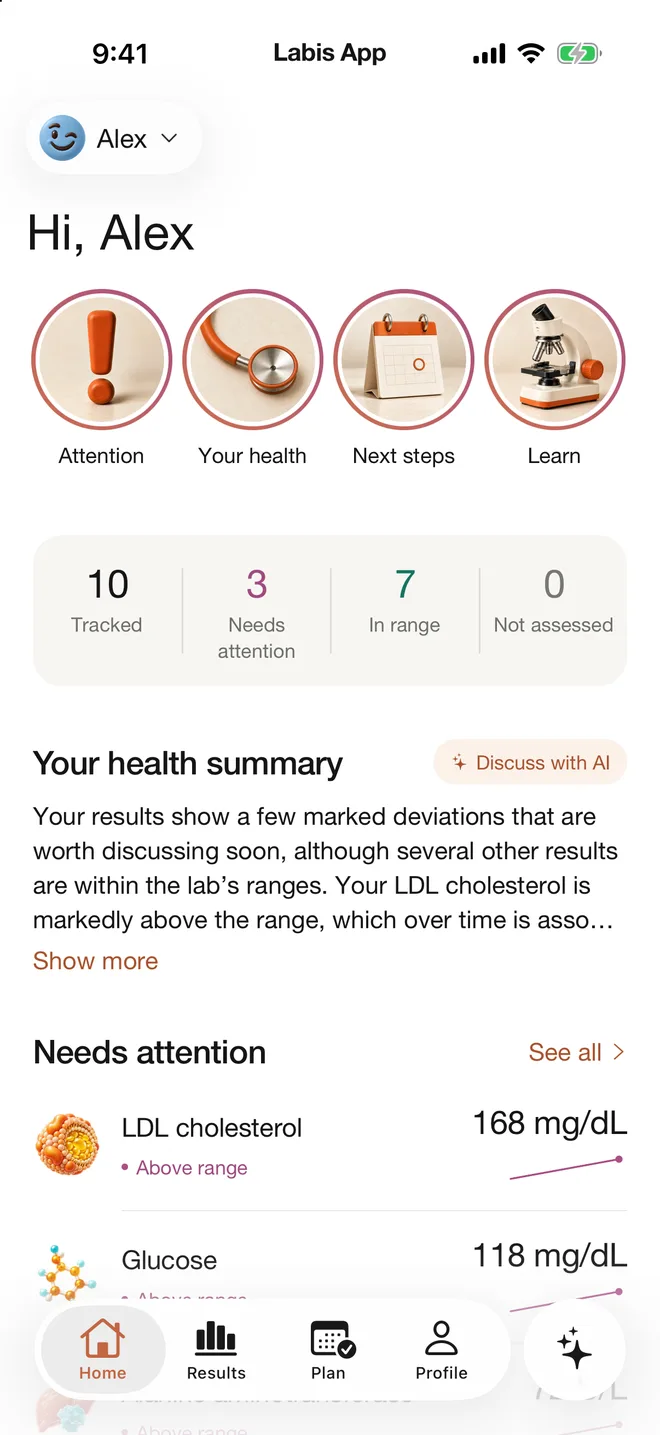
Results worth a look. After your first import, Home shows up to four results outside their lab range. Pin or unpin any test (up to 12), and later imports never override your choices.
Next checkup at a glance. The nearest checkup from your Plan, or an "Add checkup" button.
Next visit and question count. Your next doctor visit, its date (or "Date not set") and how many questions are saved.
Lab-flagged results surfaced. If the lab marked a result as critical, Home points it out and suggests contacting the clinician or lab that ordered the test.
What this test measures. For common routine tests: what the test measures, why it matters, and what a result above or below the range can mean in general terms, with sources and the general disclaimer.
AI explanation for other tests. For a test that isn't in the library, Labis can write a general explanation. It sends only the printed name, the unit and the direction, never your value or your name.
Questions based on your results. Questions to ask your clinician are written for the specific test and direction, using your earlier results where available.
One tap to visit questions. A question goes to your nearest upcoming visit, or to a single undated draft. Labis tells you where it went and offers "Open visit".
Visit preparation checklist. Each visit has a title, an optional date picked from a calendar, notes, and questions you can add, edit, reorder, delete and mark as discussed.
Suggested questions from results. Up to 8 suggestions built from your latest out-of-range results, most significant first.
Archive or delete visits. Archived visits stay readable under "Archived".
Doctor report PDF builder. Choose lab results by report, clinic and date, plus comparisons, visit questions, other documents and the original pages. Date of birth is optional.
Report with originals attached. The PDF lists values, units and lab ranges with their sources, then appends every original page. Preview it, share it, and regenerate it when your records change.
Plan calendar. Upcoming blood tests, checkups, visits and other items on a week strip, with an "All upcoming" list.
One-time or repeating items. Choose a calendar date and an optional time. Repeat every 1–60 days, weeks or months, with an optional end date.
From my doctor's plan. Record that a date came from your doctor, with optional clinician, clinic and instruction. Labis never suggests tests or dates.
Several reminders per item. Remind yourself the day before at a time you choose, one hour before, and/or at the time. Reminders respect quiet hours.
Link a test, mark done. Link a test from your records, mark the sample as taken, then link the new results and complete the item. You can skip one date or pause the whole series.
Ask about your records. Ask questions in plain language. Answers come only from that profile's saved records and link to their sources.
Starter questions. "Explain my latest results", "What changed since my last results?", "Is anything outside range?", "What should I ask my doctor?".
Honest limits in answers. Answers list what's missing and any limitations, are labelled "AI-generated", and say "Not enough in your records" instead of guessing.
Save answers, add questions. Touch and hold an answer to save or copy it, add it to visit questions, or ask a follow-up. Conversations aren't stored unless you save an answer.
Off until you allow it. A consent screen explains what is sent and who receives it (OpenAI, US; not used for training). AI can be switched off per profile, and everything else works without it.
Profiles for people you care for. Add a child profile (as their parent or guardian), or an adult you look after. For an adult, you record the basis: their request, power of attorney or guardianship.
Switch person from any tab. A menu in the header lists every profile, with "Add person…".
Share with chosen permissions. Invite an adult by email. You choose what they can do: view records, add records, manage the plan, export, use AI. Nothing is shared until they accept, and invitations expire in 7 days.
Ask someone to share. Request access to another person's records. They decide which profile to share and what you may do.
Invitation link or code. Open an invitation by link, or by pasting the code (also possible from the paywall). Accept or decline.
Change or remove access. The owner can change permissions or remove a person at any time. People with access can leave a shared profile.
Hand a profile over. Give a managed adult's profile to them. Once they accept, they own it and decide whether you keep access.
Profile settings. Name and birth date, a per-profile AI switch, and deleting a profile (you type the name to confirm).
Sign in with Apple or email. Create an account with Sign in with Apple or email and password.
Short onboarding. Profile name, a one-time note about medical advice, an AI choice, then your first result (or skip).
Updates inbox. Finished uploads, invitations, access changes and lab flags in one list, with unread count and "Read All".
Notification controls per person. Toggles for result updates, plan reminders and family updates, plus quiet hours. Lock-screen text is always generic.
Full data export. A zip with CSV tables, data.json, a README, a manifest and every original file. Every correction version is included, and a missing original can be retried.
Delete account in the app. Deletes your account and everything you own.
Subscription and restore. Paywall with a free trial where one is offered, plus Restore and Manage Subscription. Without an active subscription, past subscribers and invited people keep read and export access.
Light and dark mode. Follows the iOS appearance.
FAQs
Answers to what people ask most about Labis: what it does, what it doesn't, your data and your subscription. Can't find yours? Write to us.
No. Labis keeps your results organized and shows each one next to the reference range printed by your laboratory. It does not diagnose, screen for conditions or suggest treatment, and it is not a substitute for a clinician. An organizer and educational tool, not medical advice or a substitute for a clinician.
From your laboratory report. Ranges differ between laboratories and methods, so Labis shows the range the laboratory printed for that test, with a link to the page it came from, instead of a generic one.
You review every test before it is saved, with the original page next to it, and you can correct any value. Uncertain values are marked for you to check, and the original document is always kept.
Only you, and the people you invite. An invitation must be accepted before anything is shared, each person gets only the permissions you choose, and you can remove their access at any time. Nothing is used for advertising or sold.
Nothing until you turn AI processing on. Then it receives the reports you import, so they can be read for you to review, and the questions you ask with the saved records needed to answer them, only for profiles you can access. Our AI provider does not use them to train its models.
Yes. Labis is a subscription app, with a free trial where one is offered. If a subscription ends, nothing you saved is deleted: it is there again when you subscribe, you can still delete your account in the app, and we'll send you a full export of your data if you ask.
Yes. Delete any document or result, or delete your account and everything in it from Settings. Export first if you want a copy. A subscription is cancelled separately in your Apple ID settings.
PDFs, JPEG, PNG and HEIC photos, or a paper report photographed in the app. One import holds up to 20 files (50 MB each), and values are read from PDFs of up to 100 pages.
Yes. Enter them by hand: the test name, value, unit and the range printed by the lab. They are labelled "Manual entry" so you always know where a value came from.
No. Each value is read and then checked against the report a second time. You are asked only about values that stay unclear. They are marked "Please confirm", with the original page one tap away.
Labis tells you, and it doesn't guess. Unclear characters are left for you to check. Older results printed in extra columns are listed separately, and it asks for the sample date only when that is ambiguous.
Each result keeps the range its own lab printed, and the chart draws each point with that range. Results in different units or from different methods are never merged into one trend. Anything that can't be plotted is listed under the chart with the reason.
The difference between the two results you pick, and nothing else: later minus earlier, plus the percentage. It is shown only when both values are exact and in comparable units. A change isn't better or worse by itself; your clinician can interpret it.
The results, comparisons, visit questions and documents you choose, each with the lab's values, units and printed ranges. The original pages are attached, which the PDF names as the authoritative source.
Yes. Add a blood test, checkup, visit or other item to your Plan, once or repeating, with up to three reminders: the day before at a time you choose, one hour before, and at the time. Labis never suggests which tests to have or when.
Yes, with their consent or legal authority (for example power of attorney or guardianship), which you confirm in the app. You can later hand the profile over to them so they own it.
Only what you allowed: view records, add records, manage the plan, export, or use AI. They get nothing until they accept the invitation, which expires after 7 days. You can change or remove their access at any time.
If you subscribed before, or someone shared a profile with you, you can still open your records, history, originals and reports, and export them. Adding new results, new plan items and the assistant need an active subscription.
The database and original documents are stored in London, United Kingdom, in private storage opened only through short-lived links. OpenAI (US) receives data only when AI processing is on. Analytics and crash reports never include health values or names.
Every report, every test with its lab's range, and a clear PDF for your next appointment. Coming to iPhone.